Click here to download the guide as a PDF file
- Download one of the following apps from the app store:
- Microsoft Authenticator -
- Google Authenticator -

- Microsoft Authenticator -
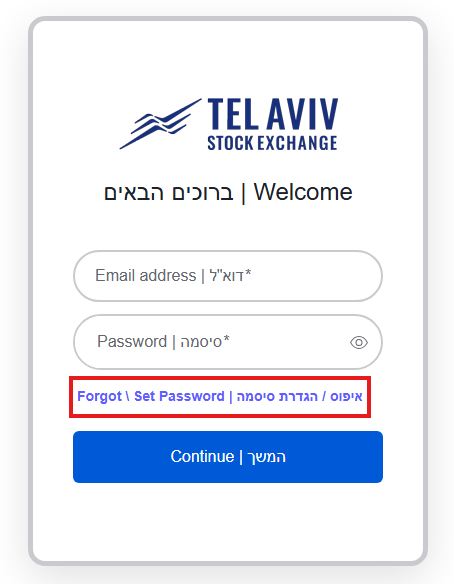
- Click the TASE system link provided in your email. When the login page opens, select 'Forgot/Set Password.'
-
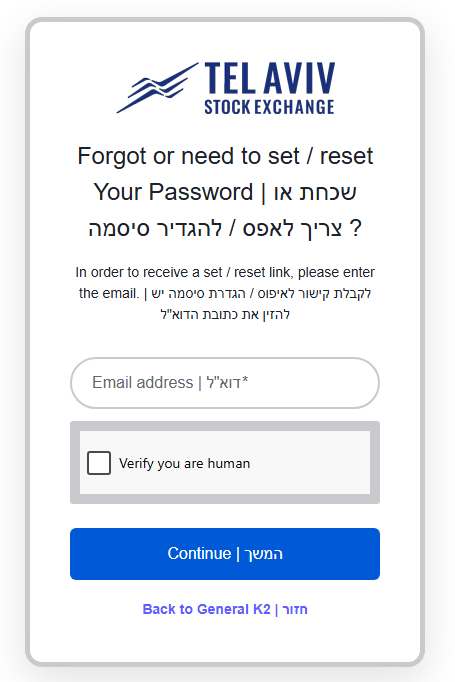
Enter the email address associated with the password. Then, verify that you are human and click Continue.
-
After a few moments, you will receive an email from tasesupport@tase.co.il with the title Reset password.
If you do not receive the email after a few minutes, you should:-
Check if the email has reached spam.
-
Verify with the IT staff that the organization allows receiving emails from tase.co.il and tasemail.co.il
-
-
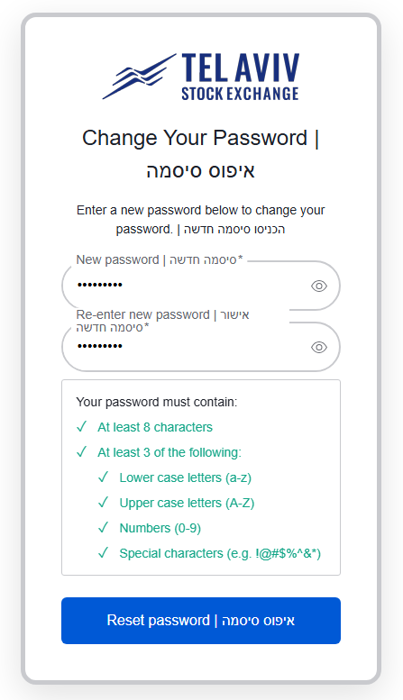
Click the link in the email to set a new password. The password must include uppercase and lowercase English letters, a number, and a special character. Finally, click Reset Password.
-
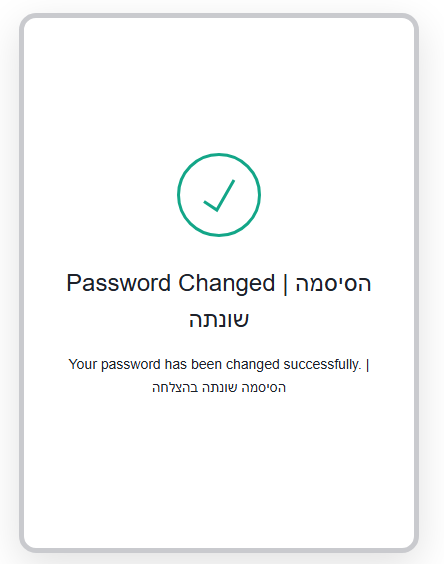
After receiving the “Your password has been changed successfully” message, use the email link to access the TASE system and log in with your new password.
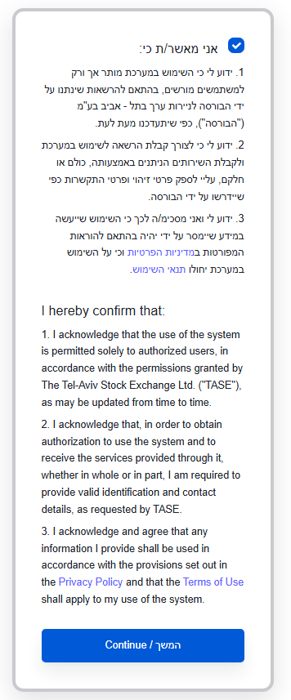
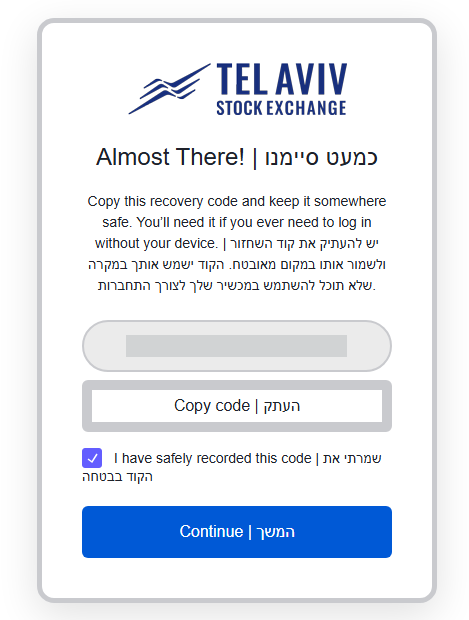
- Check the confirmation box and click Continue.
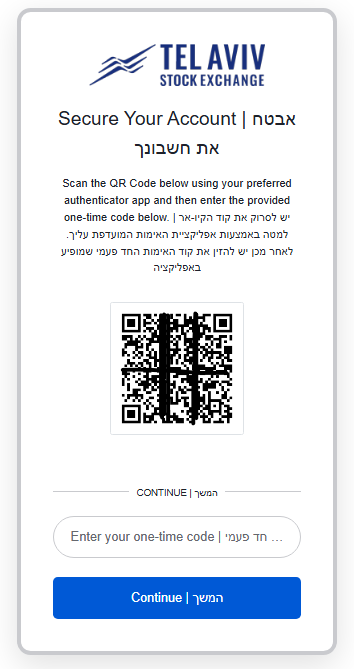
- Now you will ger the following screen:
-
Log in to the authentication app that you installed on your mobile phone (Google Authenticator or Microsoft Authenticator), tap the + or Scan option, and scan the QR code.
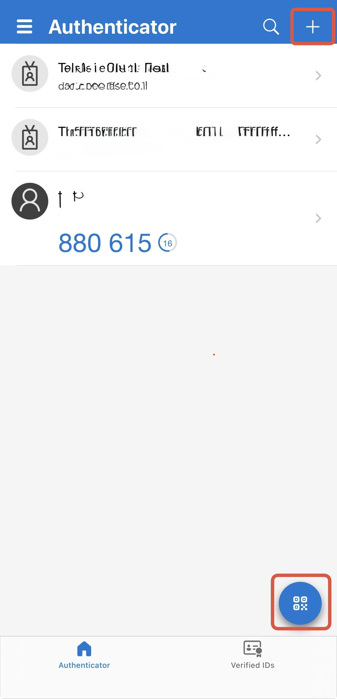
- Now a new line will be added to the application with the following configuration: tase: {email address}
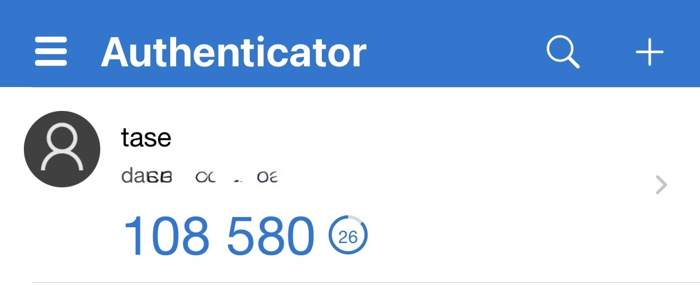
- Type the 6-digit code in the "Enter your one-time code" field and click Continue.
- On the next screen that appears, mark V and continue.
Login completed!